
Welcome to Adobe After Effects is a powerful tool for motion graphics, animation, and visual effects. However, to unlock its full potential, mastering plugins and expressions is important. Plugins extend After Effects’ functionality, while expressions automate tasks and create dynamic animations with ease. In this blog, we’ll explore essential After Effects plugins, expressions, useful video tutorials, and expert tips to enhance your workflow and creativity.
Why Use Plugins in After Effects?
Plugins in After Effects unlock endless possibilities, enhancing creativity and productivity. These powerful tools:
- Save Time: Automate repetitive tasks and simplify complex processes.
- Expand Functionality: Add features beyond After Effects’ default capabilities.
- Boost Creativity: Create stunning effects, animations, and designs effortlessly.
- Enhance Workflow: Improve efficiency with optimized tools and shortcuts.
- Professional Quality: Achieve polished results that stand out in any project
List of Plugins
– Motion Tool
– Character tool
– Joystick and sliders
– Ease copy
– Auto crop
– Zero tangents
– Labels
– Fx console
– Swiss knife
– Super morph
Motion Tool
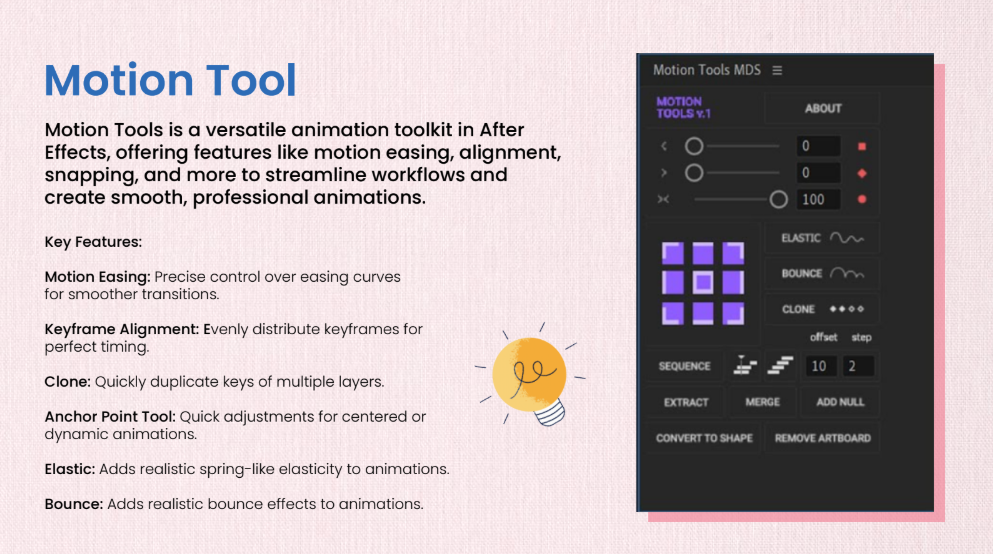
Motion Tools is a versatile animation toolkit in After Effects, offering features like motion easing, alignment, snapping, and more to streamline workflows and create smooth, professional animations.
Character tool
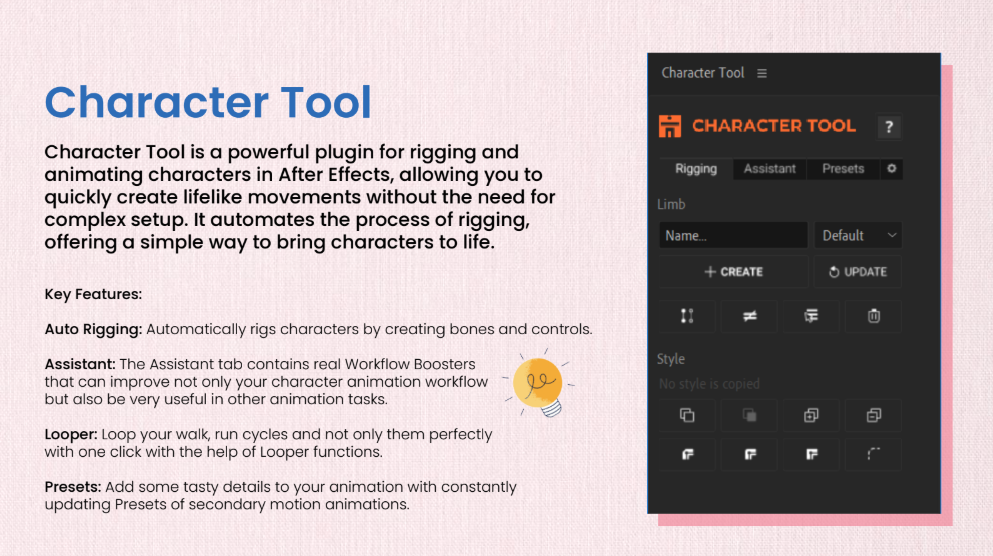
Character Tool is a powerful plugin for rigging and animating characters in After Effects, allowing you to quickly create lifelike movements without the need for complex setup. It automates the process of rigging, offering a simple way to bring characters to life
Joystick and sliders
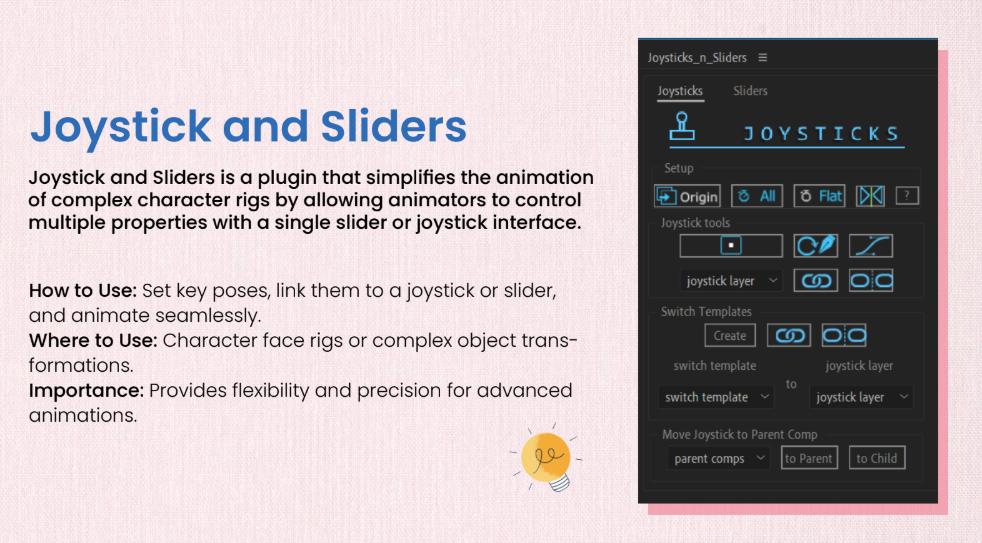
Joystick and Sliders is a plugin that simplifies the animation of complex character rigs by allowing animators to control multiple properties with a single slider or joystick interface.
Ease copy
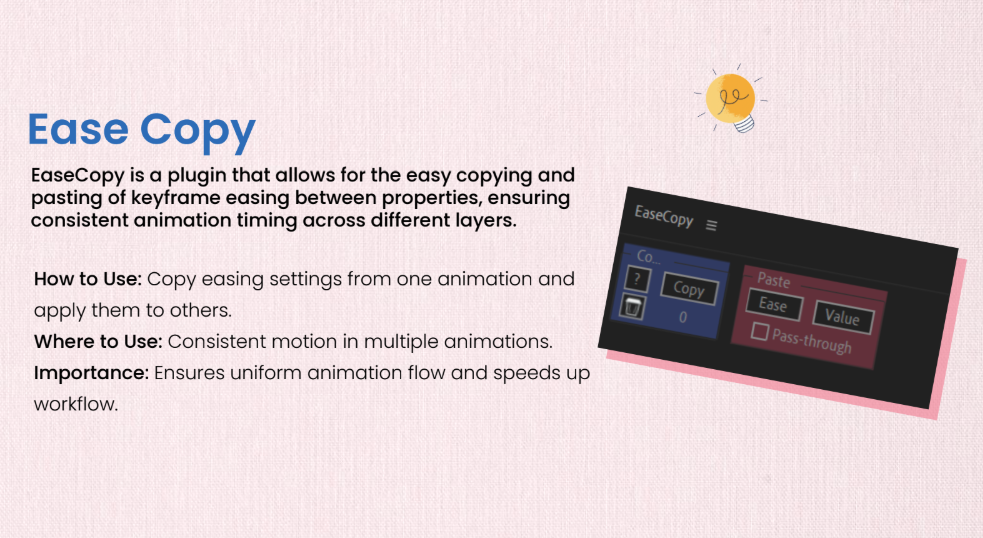
EaseCopy is a plugin that allows for the easy copying and pasting of keyframe easing between properties, ensuring consistent animation timing across different layers.
Auto crop
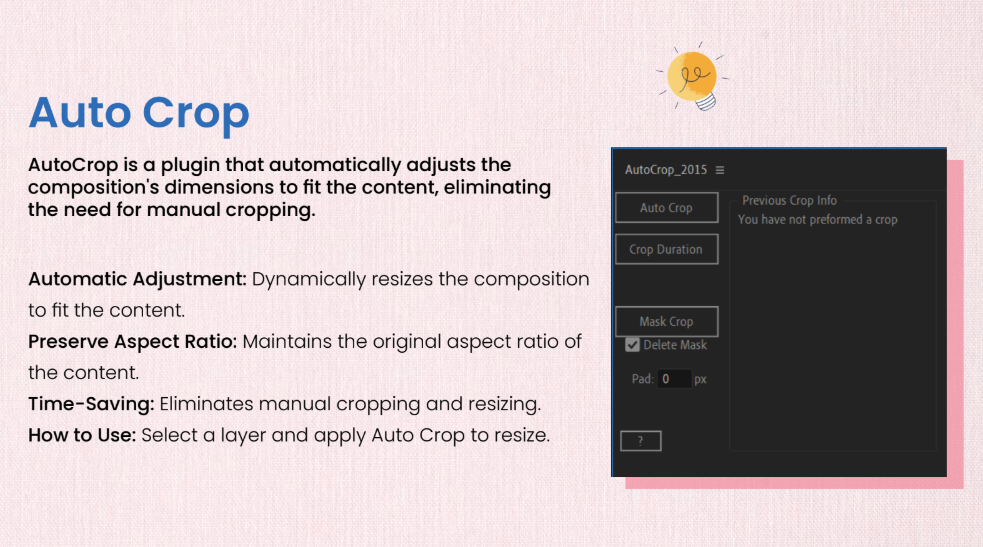
AutoCrop is a plugin that automatically adjusts the composition’s dimensions to fit the content, eliminating the need for manual cropping.
Zero tangents
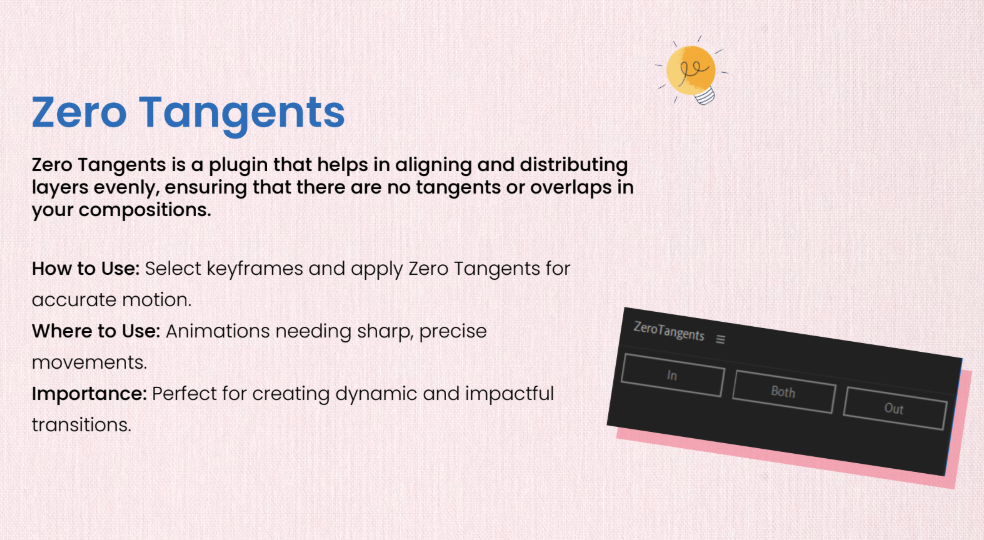
Zero Tangents is a plugin that helps in aligning and distributing layers evenly, ensuring that there are no tangents or overlaps in your compositions.
Labels
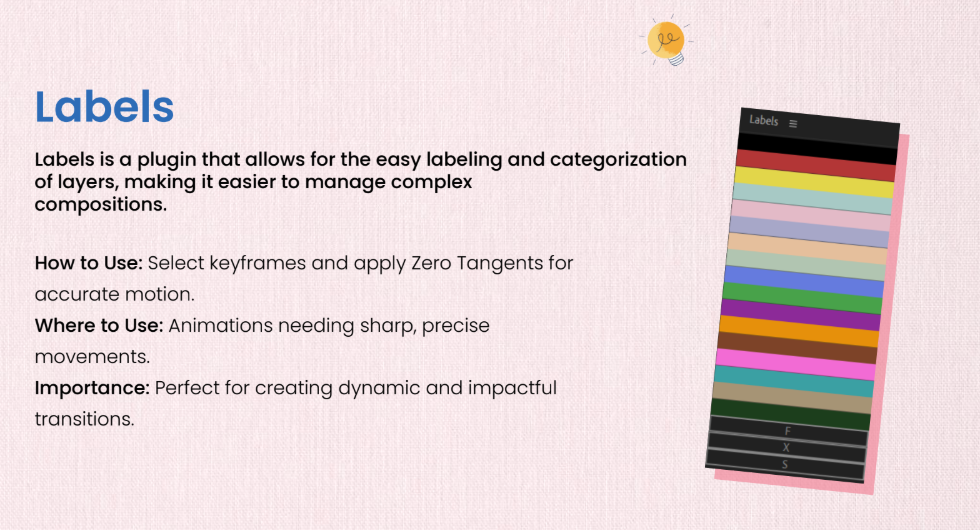
Labels is a plugin that allows for the easy labeling and categorization of layers, making it easier to manage complex compositions.
Fx console
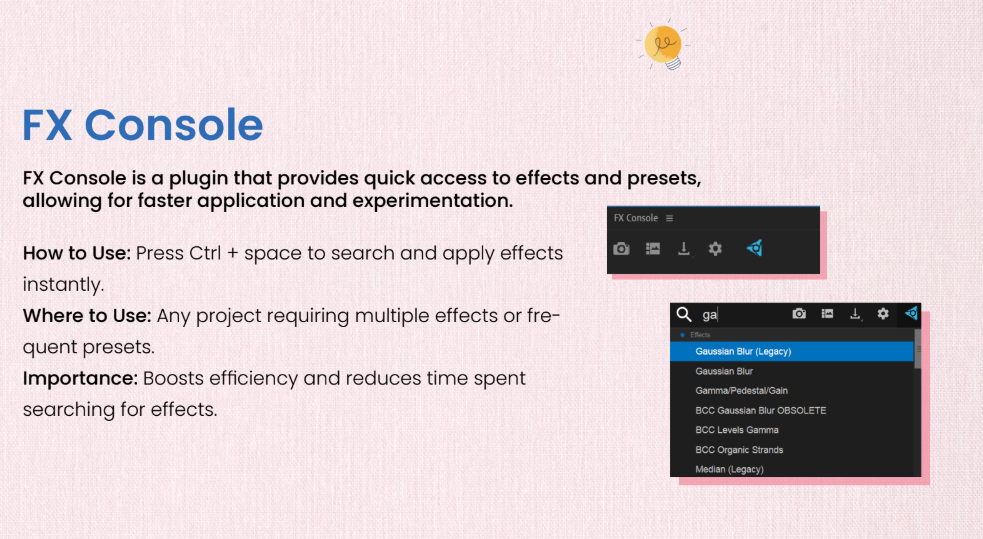
FX Console is a plugin that provides quick access to effects and presets, allowing for faster application and experimentation.
Swiss knife
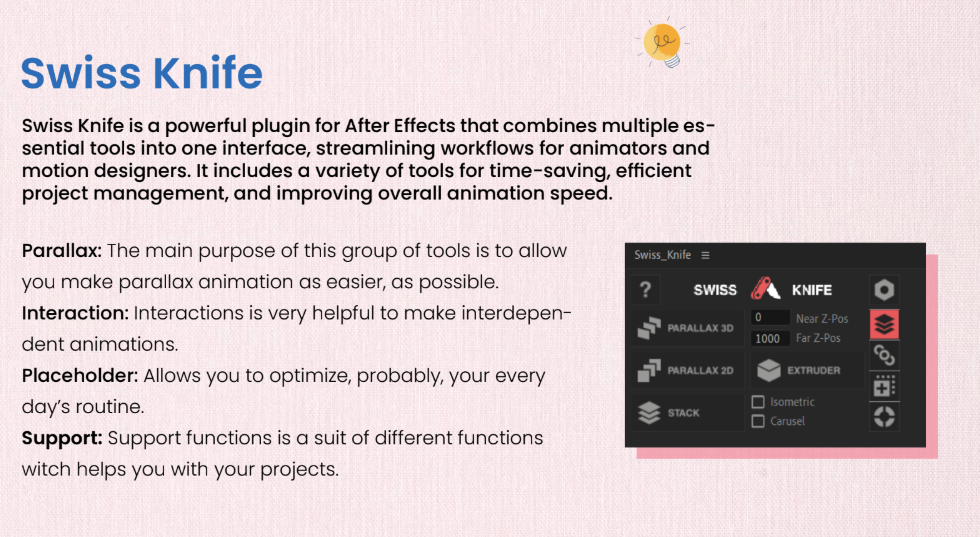
Swiss Knife is a powerful plugin for After Effects that combines multiple essential tools into one interface, streamlining workflows for animators and motion designers. It includes a variety of tools for time-saving, efficient project management, and improving overall animation speed.
Super morph
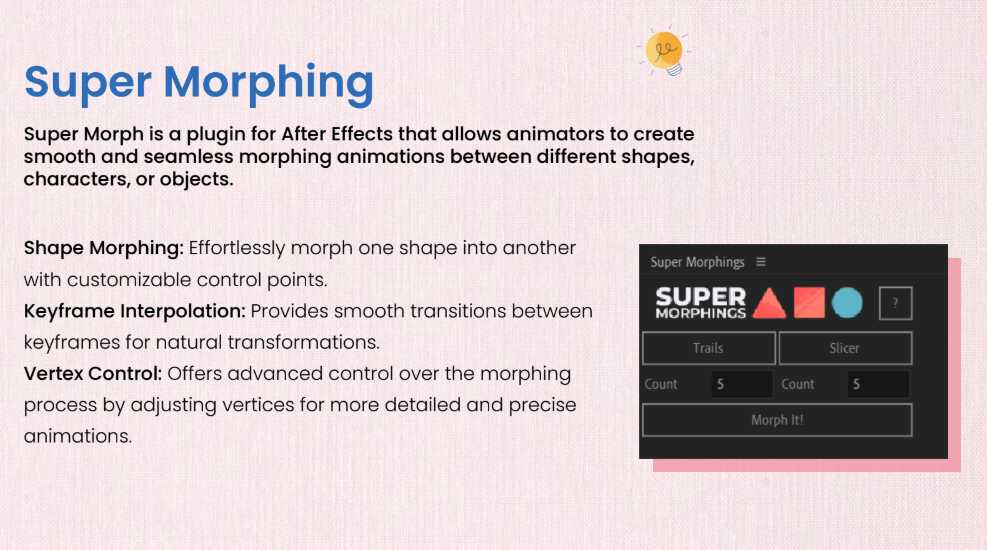
Super Morph is a plugin for After Effects that allows animators to create smooth and seamless morphing animations between different shapes, characters, or objects.
Animation Composer
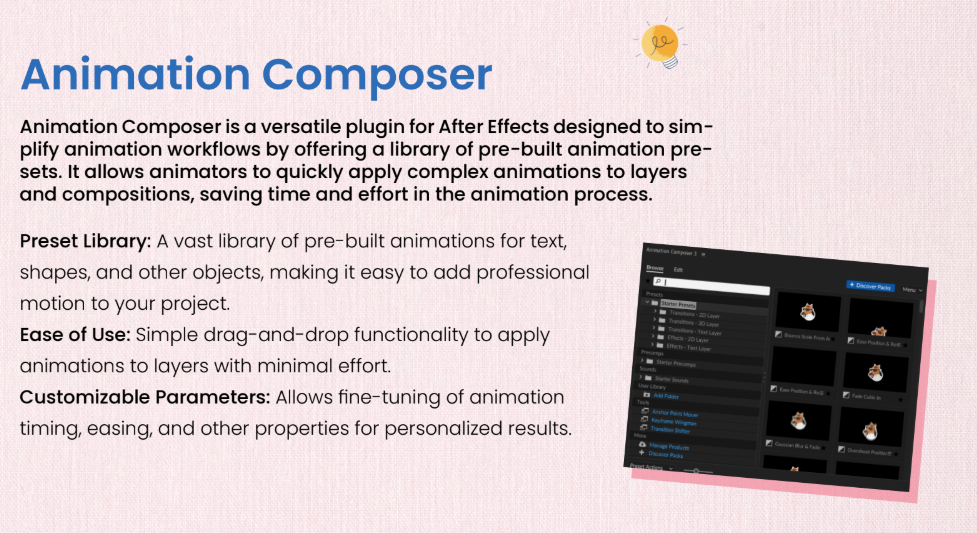
Animation Composer is a versatile plugin for After Effects designed to simplify animation workflows by offering a library of pre-built animation presets. It allows animators to quickly apply complex animations to layers and compositions, saving time and effort in the animation process.
Text Evo
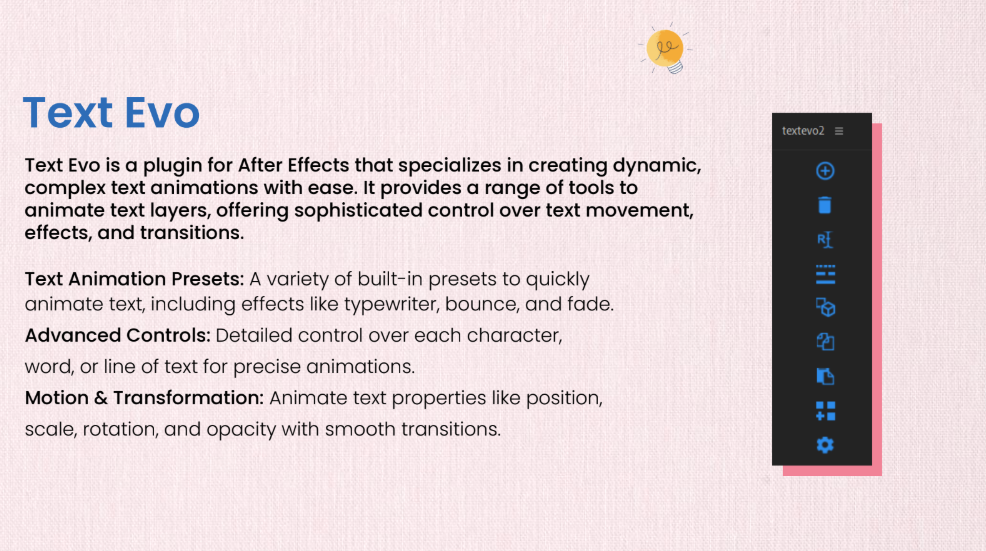
Text Evo is a plugin for After Effects that specializes in creating dynamic, complex text animations with ease. It provides a range of tools to animate text layers, offering sophisticated control over text movement, effects, and transitions.
Expressions in After effects
Expressions in After Effects are powerful snippets of code that automate and control properties within your animation. Using JavaScript-based syntax, expressions allow animators to create dynamic animations, link multiple properties together, or create complex interactions that would be difficult or impossible to achieve manually.
Wiggle Expression

Purpose: Adds random motion to properties like position, rotation, or scale, creating a natural, jittery effect. wiggle(frequency, amplitude)
frequency: How many times per second the property will wiggle.
amplitude: How far the property will move.
Example: wiggle(2, 30) — This will make the layer wiggle 2 times per second with an amplitude of 30 pixels.
Time Expression


Purpose: Creates a continuous animation based on time, allowing you to control properties like rotation or position over time. value + time * speed
value: The initial value of the property.
speed: The rate of change per second.
Example: time * 50 — This rotates the layer by 50 degrees per second.
Loop Expression

Purpose: Creates a looping animation that repeats after a set number of times or continuously. loopOut(type = “cycle”, numKeyframes = 0)
type: Can be “cycle”, “pingpong”, “offset”, or “continue”. numKeyframes: Number of keyframes the loop will consider.
Example: loopOut(“pingpong”) — The animation will repeat in a ping-pong fashion, going forward and then reversing.
Some Loop Expression
loopOut(): Repeats the animation from the last keyframe forward (e.g., loopOut(“cycle”)).
loopIn(): Repeats the animation before the first keyframe (e.g., loopIn(“cycle”)).
loopOut(“pingpong”): Loops the animation back and forth between keyframes.
loopIn(“pingpong”): Loops the animation back and forth before the first keyframe.
loopOut(“offset”): Loops the animation with an offset after the last keyframe.
loopIn(“offset”): Loops the animation with an offset before the first keyframe
After Effects plugins and expressions is essential for creating professional animations and visual effects. Whether you’re a beginner or an advanced user, incorporating these tools into your workflow will enhance creativity, efficiency, and production quality. Explore plugins, practice expressions, and follow expert tutorials to take your After Effects skills to the next level.
Want to learn more about After Effects? Stay tuned for in-depth tutorials and expert guides on our blog.WordPress. This is your first post. Edit or delete it, then start writing!